
Read a pool page
Every pool with a member in it has its own page: a price chart, the pool's liquidity at each price, and the ranges other LPs have set.
Browse poolsFind a pool
- Open Pools. Each row is a DLMM pool where at least one member has an open position.
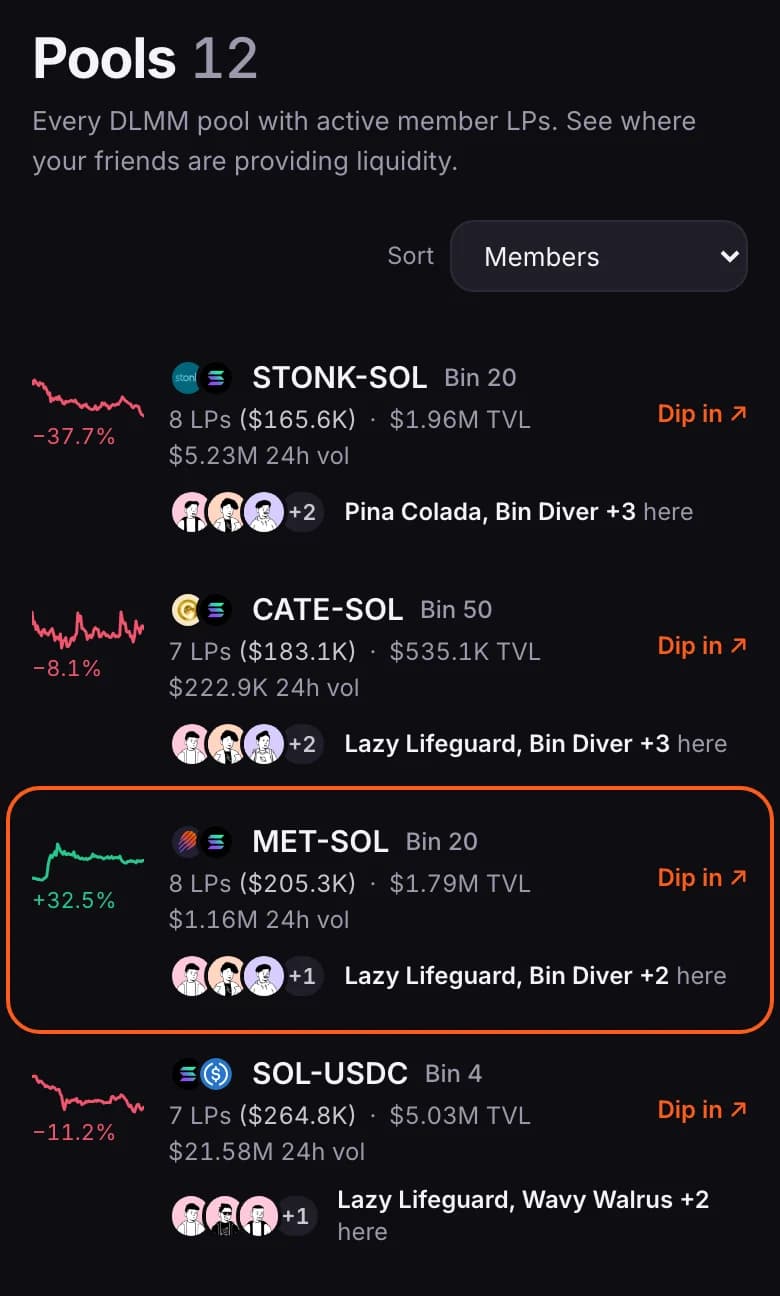
- Tap a row to open that pool.
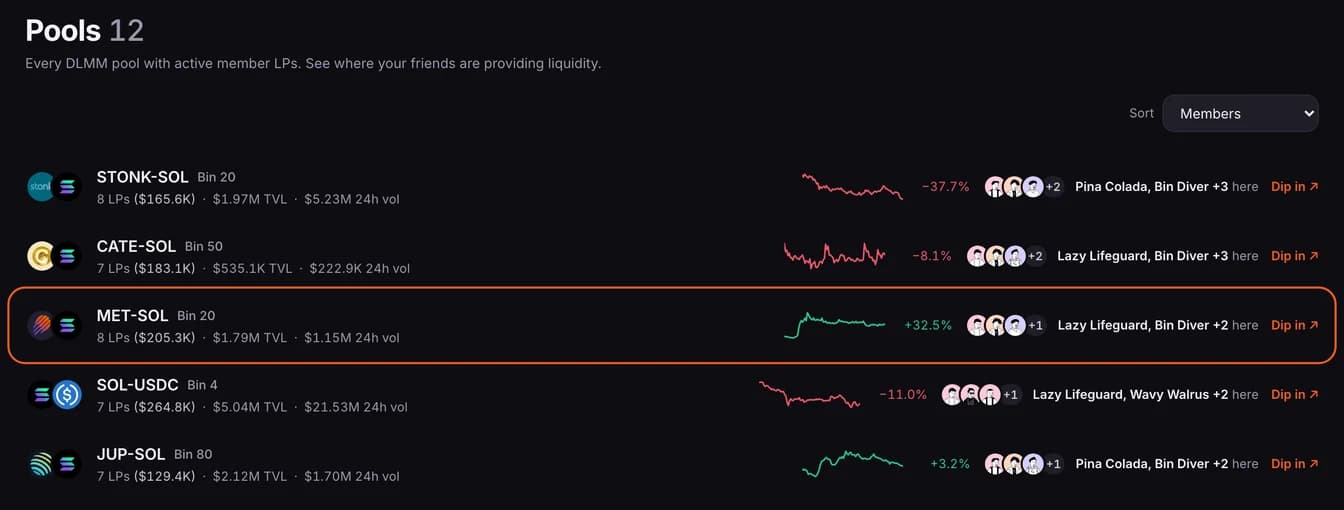
- A row shows how many members are in the pool and, in brackets, the value of their positions. TVL and 24h vol come from Meteora.
- The small line is the pool's price over the last 7 days, with the change beside it.
- The faces are members in the pool whose positions you can see, up to three. If you follow anyone there, only the people you follow are shown, with the first two named.
- Sort orders the list by Members, TVL, 24h volume or Member liquidity. Members is the default, and puts pools with people you follow first.
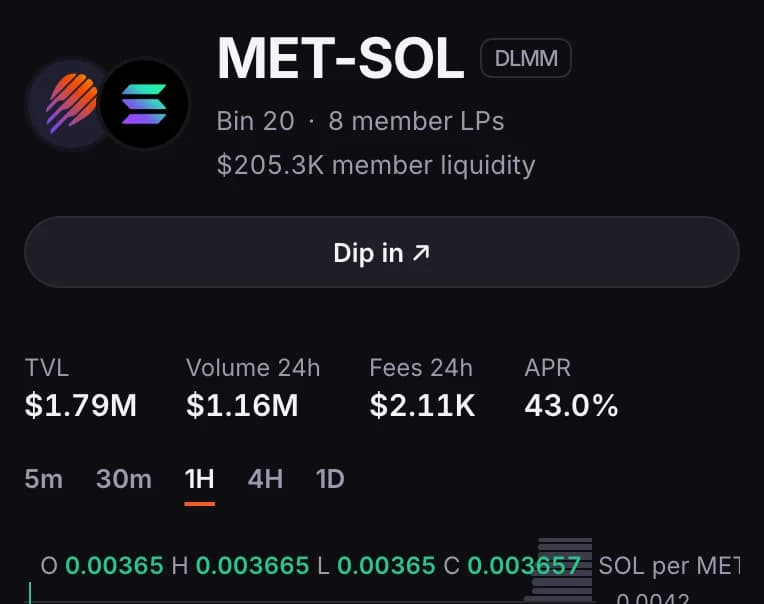
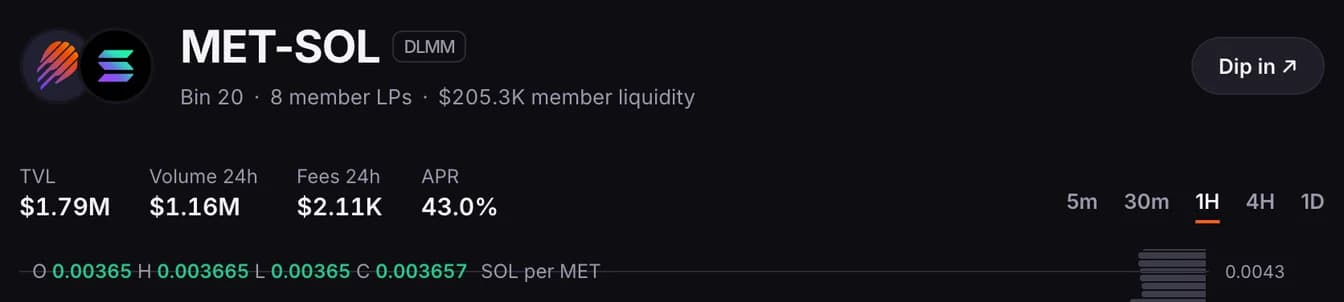
- On the pool page, member LPs and member liquidity count the members whose positions you can see, so they can be lower than on the list. APR is the last 24 hours of fees against TVL, annualised.
- Dip in opens the pool on Meteora in a new tab.
Read the chart
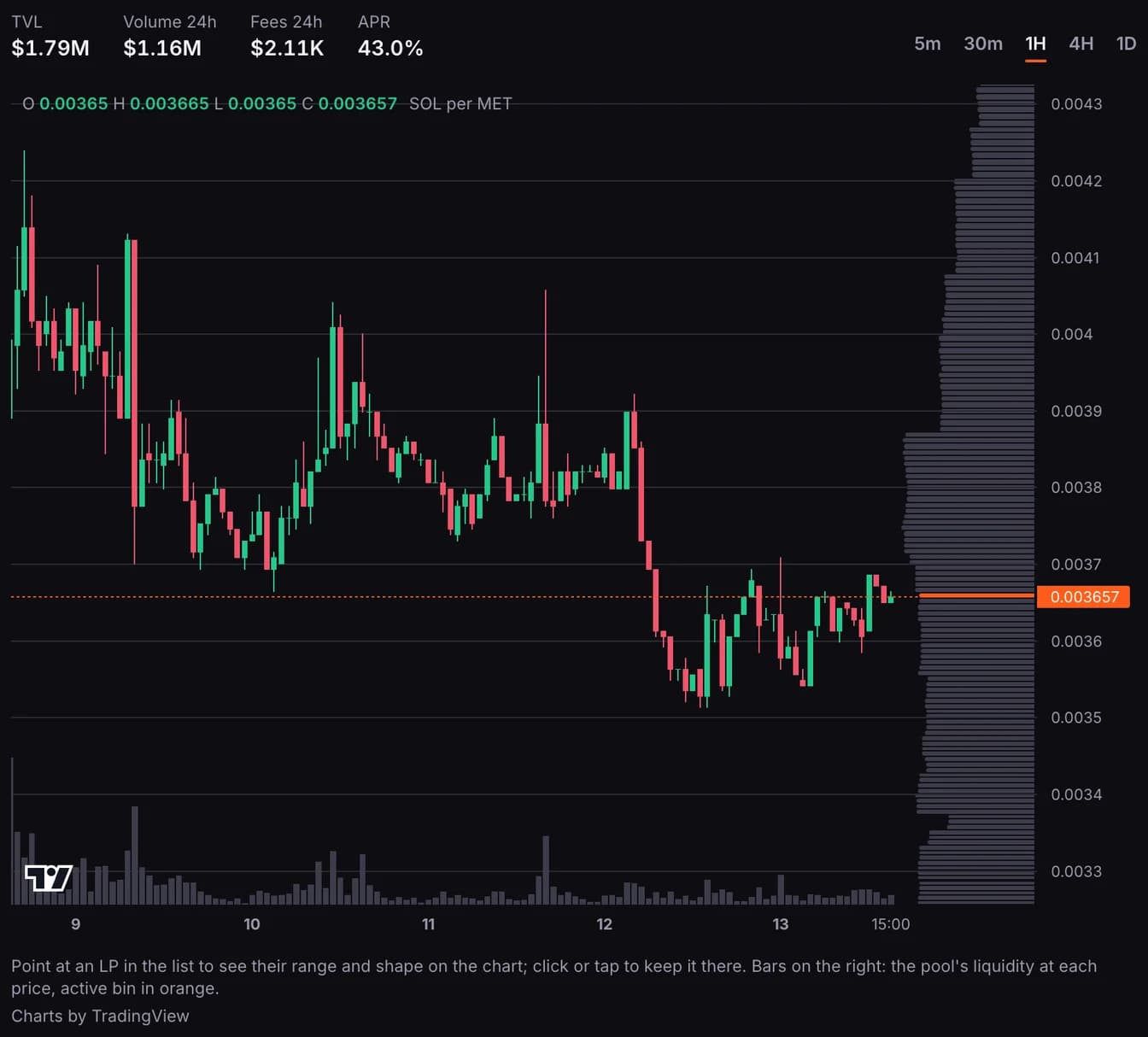
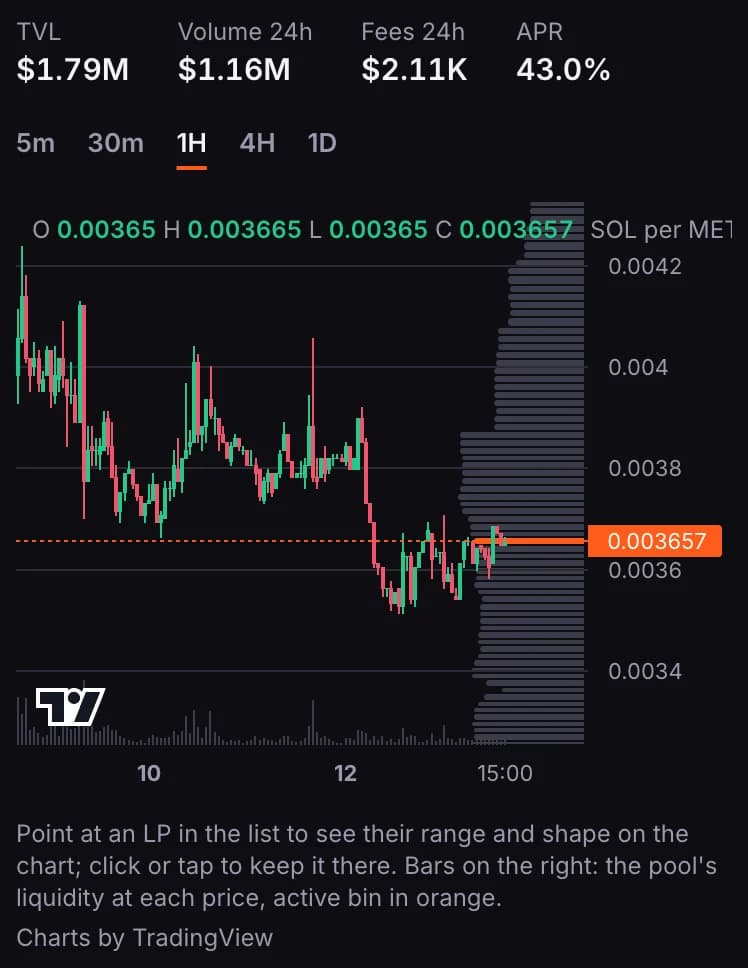
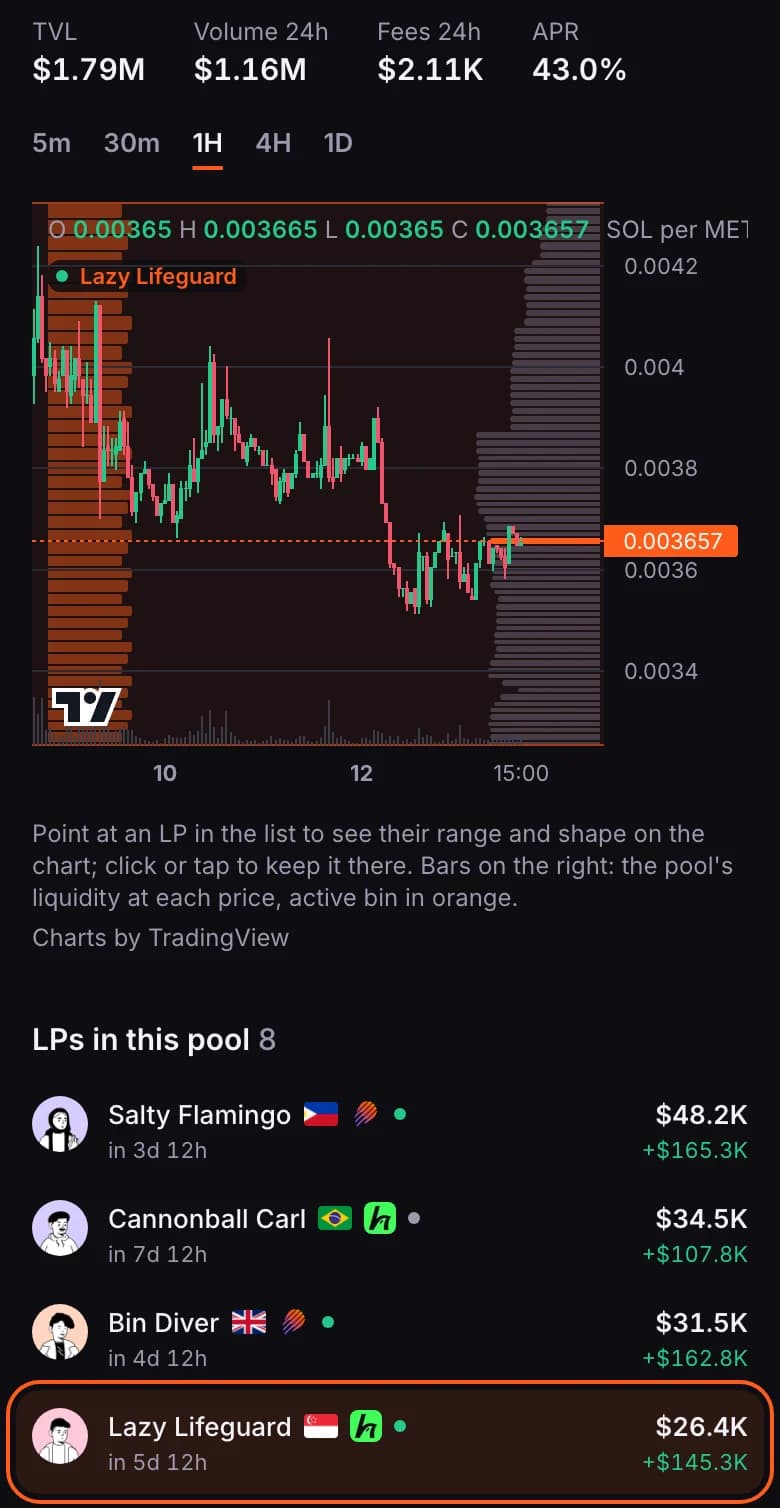
- The candles show the pool's price: how much of the second token one of the first is worth. The readout at the top left gives the open, high, low and close of the candle you point at.
- Pick the candle size at the top right: 5m, 30m, 1H, 4H or 1D.
- The dashed orange line is the latest price. The bars along the bottom are volume per candle.
- The bars down the right side are the pool's liquidity at each price, read from the chain. The orange bar is the active bin.
- Drag to move along the chart; scroll or pinch to zoom.
See who else is in the pool, and their ranges
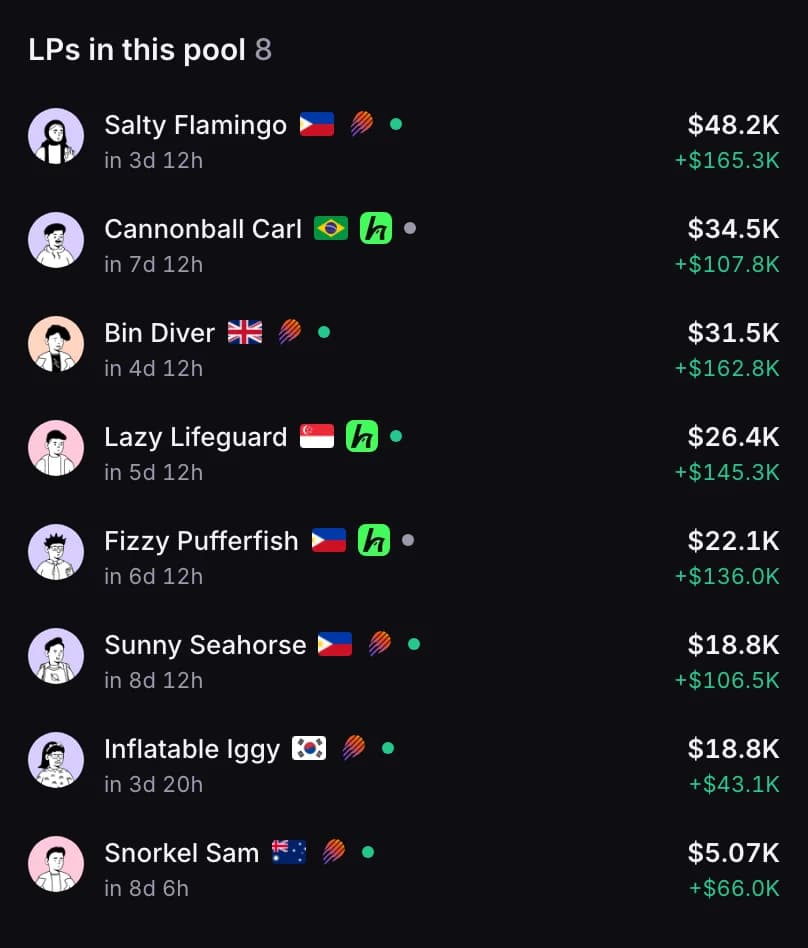
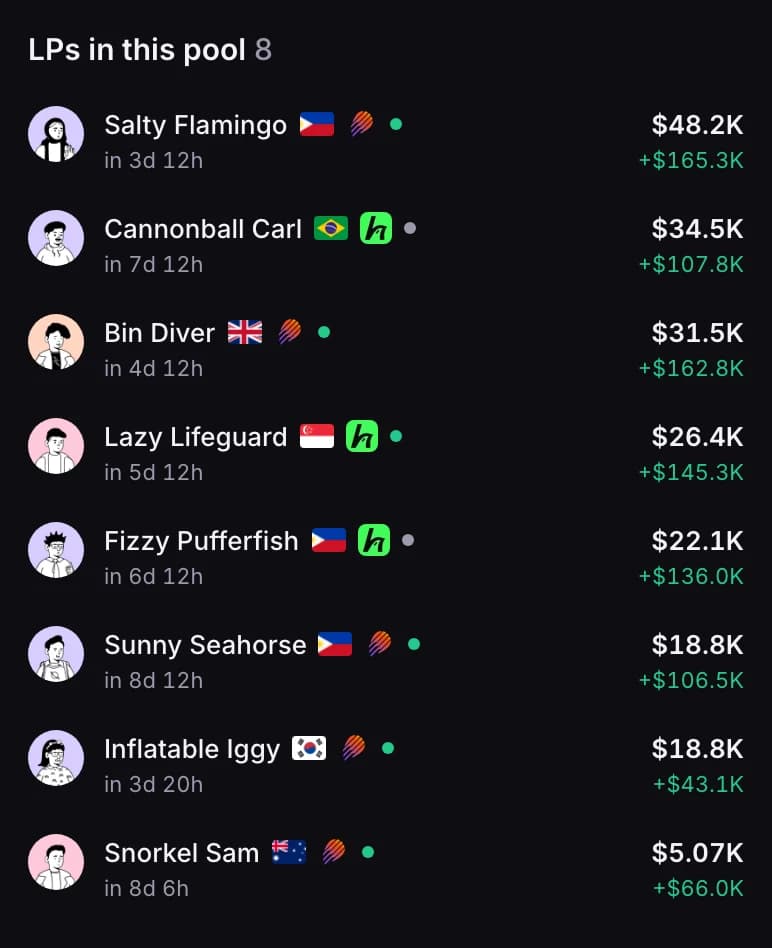
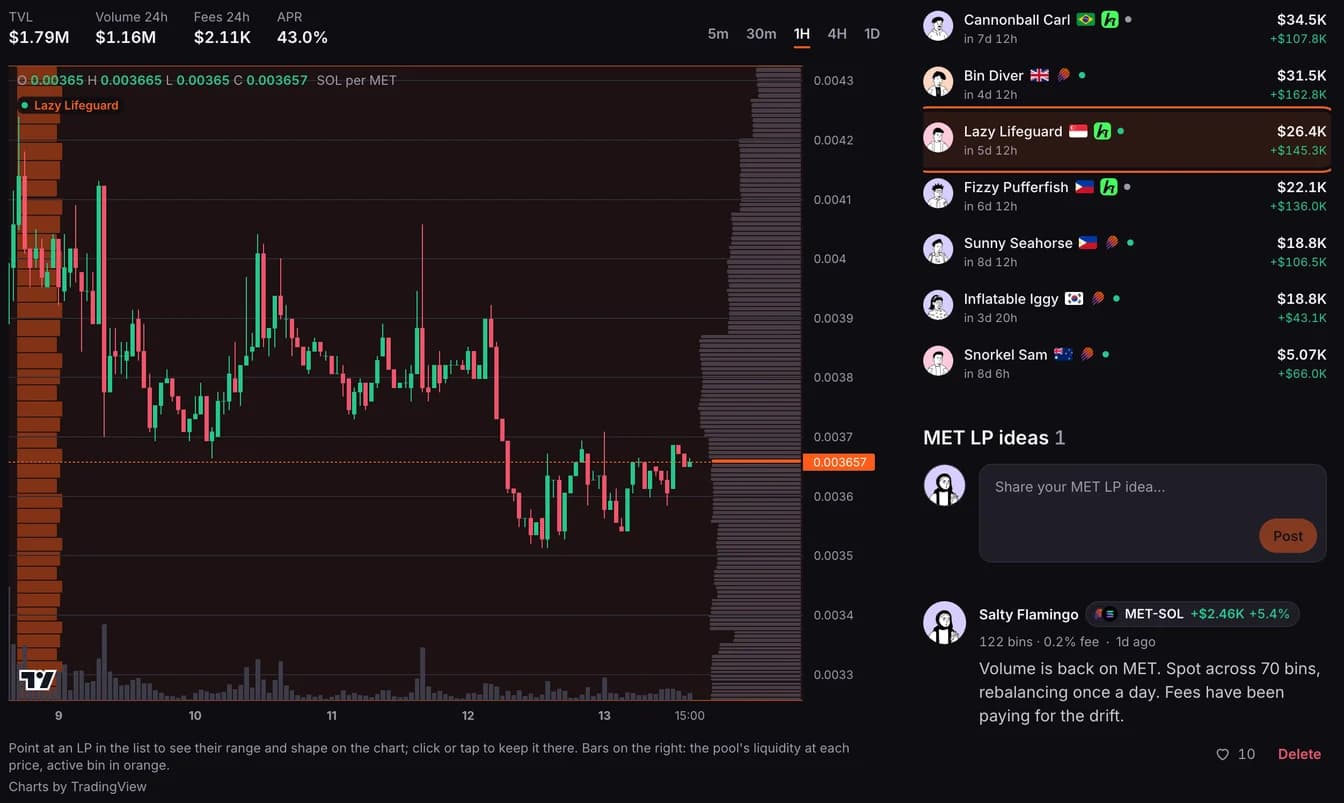
- LPs in this pool lists members with a position here that you are allowed to see, largest position first. The first 8 are shown; press Show all … for the rest. On a wide screen the list sits beside the chart; on a phone it is under it.
- Under each name is how long they have been in the pool, counted from their oldest open position here. The logo says where the position is held, on Meteora directly or through HawkFi, and the dot is green when they are in range and grey when they are out.
- The larger number is their position in this pool. The smaller one under it is their all-time PnL across every pool.
- Point at a member in the list to draw their range on the chart: an orange band from their lowest to their highest price, with both prices tagged, and bars inside showing the shape of their liquidity. Click the row to keep it there (on a phone, tap it). You can keep several at once; click again to take one off.
- When a member has more than one position in the pool, press … positions under their name to list each one, and pick one to see it on its own.
- Press a member's name to open their profile.
- You need to be signed in to see the members and their ranges.
- Members choose who can see their positions, so a member who hasn't let you in doesn't appear here. See Choose who sees your positions.
- With the list are the LP ideas members have posted on pools that share this pool's first token. See Share and find LP ideas.